The sites work.No images, no videos.
Until you decide otherwise. SafeSurf is an Android browser that does not load images or videos on any site, and SafeGuard locks the device around it so the settings you chose stay in place. For anyone guarding themselves, and for parents setting it up for their children.
- First month free, then $3.49 a month
- One-time setup, from the phone itself (Android 11 and up) or a computer
- Filtering runs on the device, no VPN
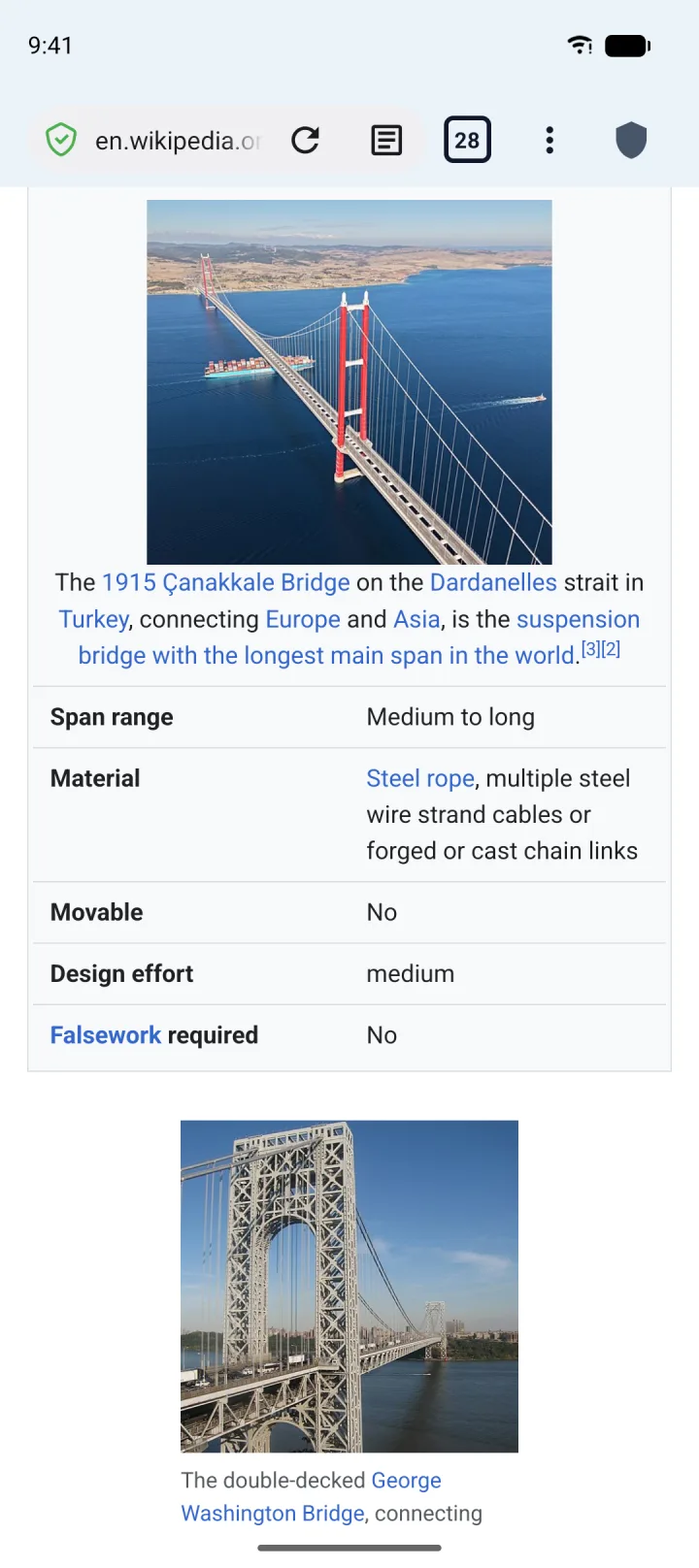
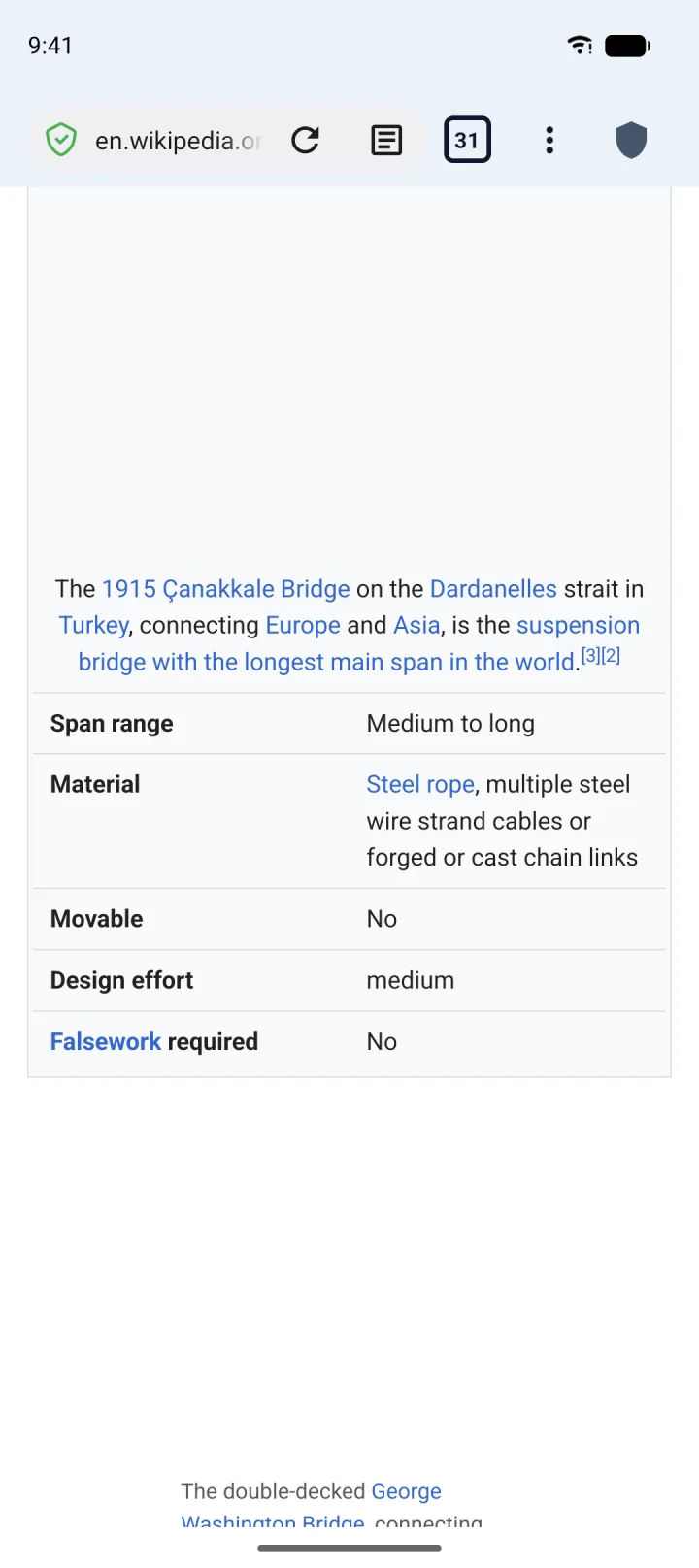
What is different about SafeSurf
Blocks images, not sites
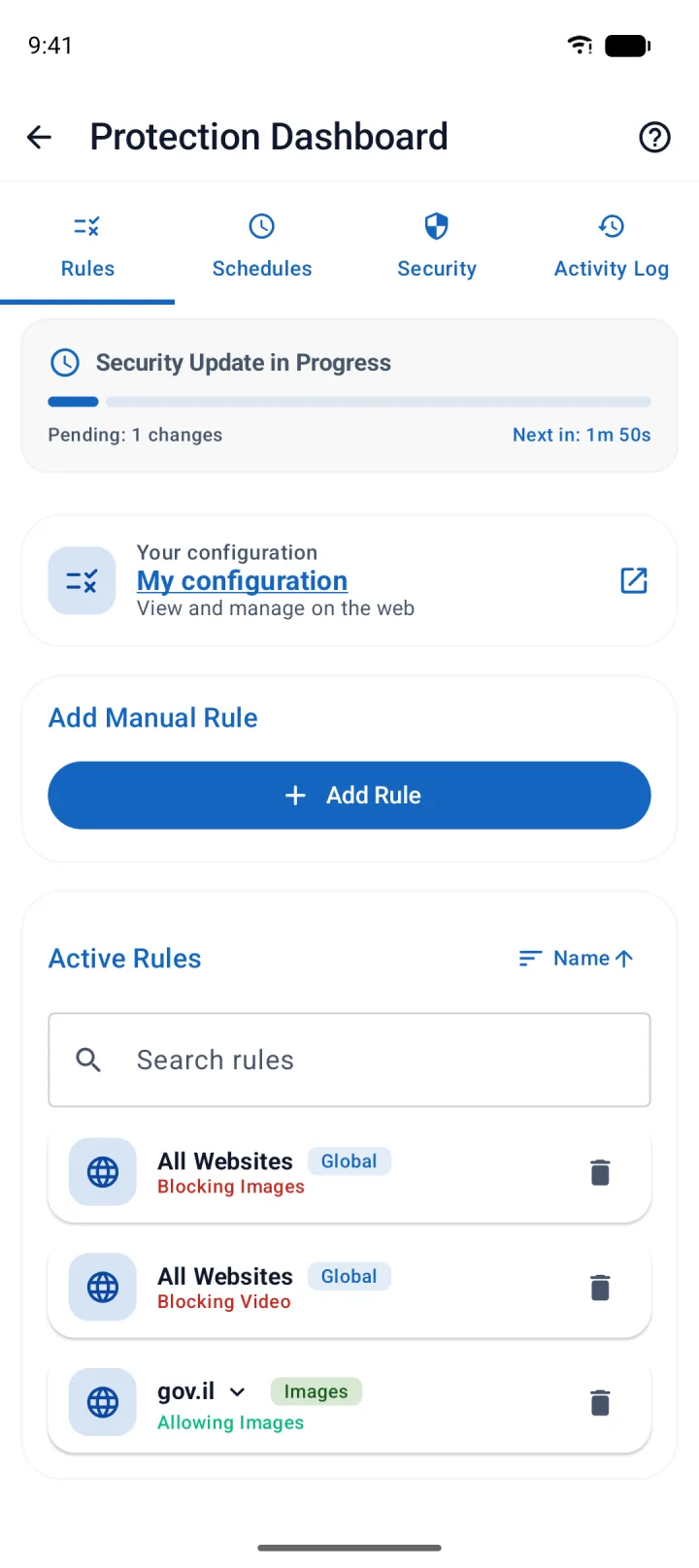
The sites you need keep working: bank, clinic, news, studies. Most filters try to block sites, and there is always one they missed. SafeSurf leaves sites open and does not load the images and videos. For a site you trust you bring them back: for the whole site, one page or a single video.
How rules work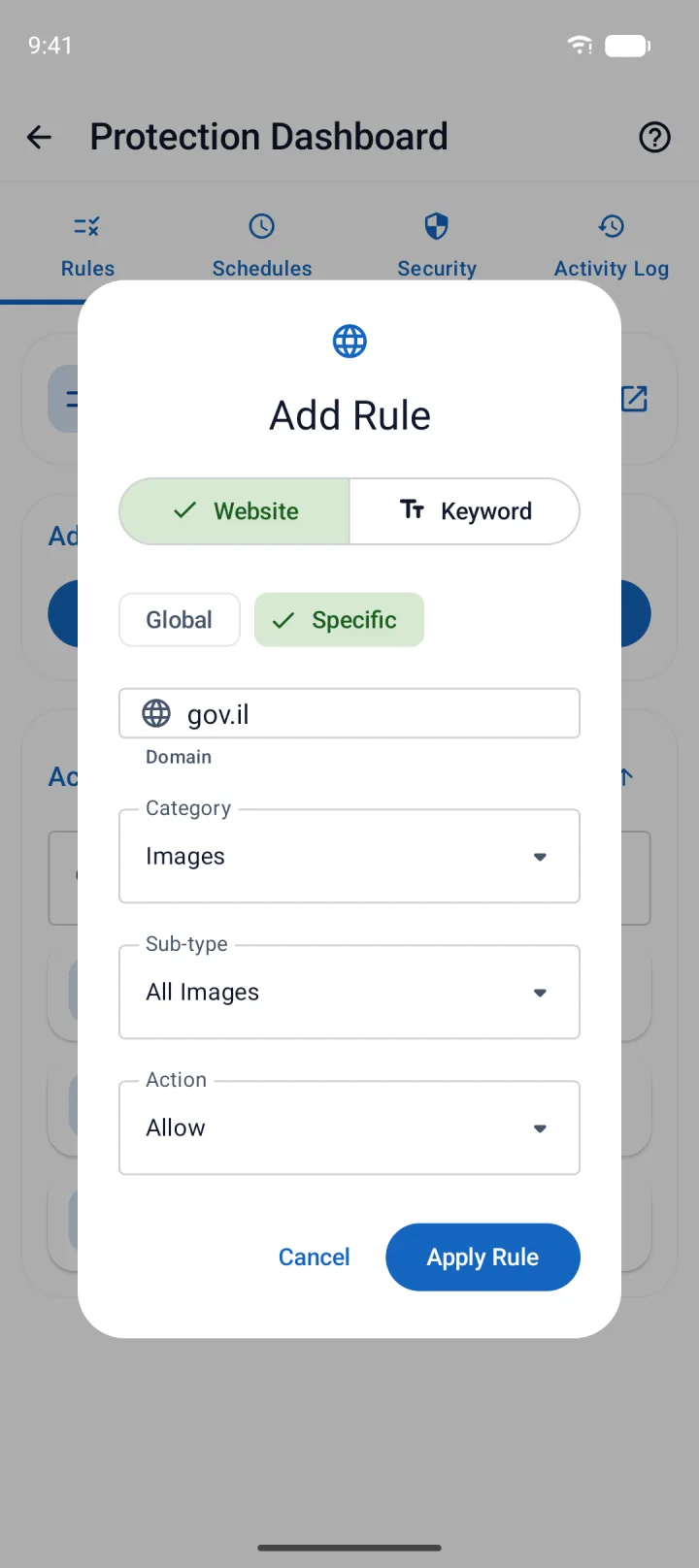
More than images and videos
You can also block a whole site, and any page that contains a keyword you choose. And you can block or allow content and file types: audio, documents, archives, apps and installers and more, down to a single file extension. On one site or on all of them.
What can be blocked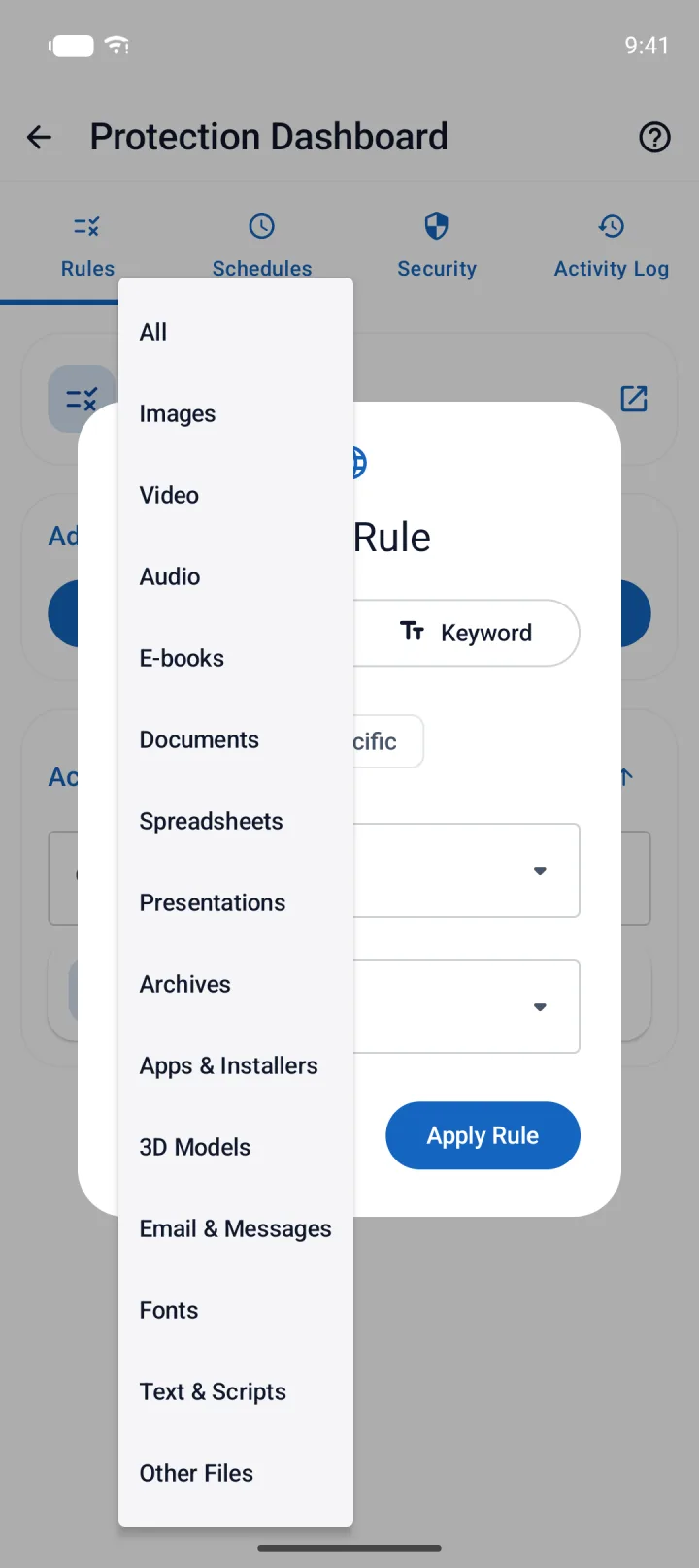
Tighten at once. Loosen only after a delay.
What you decided in a calm moment holds later too. Adding protection applies at once. Removing it waits for a delay you set in advance: an hour, a day or a week. By the time it ends, the moment has usually passed. And if it is truly urgent, a partner you chose can approve it: a parent, a friend or a rabbi.
Delay and partnerLocked
Illustration only: time is sped up here. A real delay lasts an hour or more.
The device around it is locked too
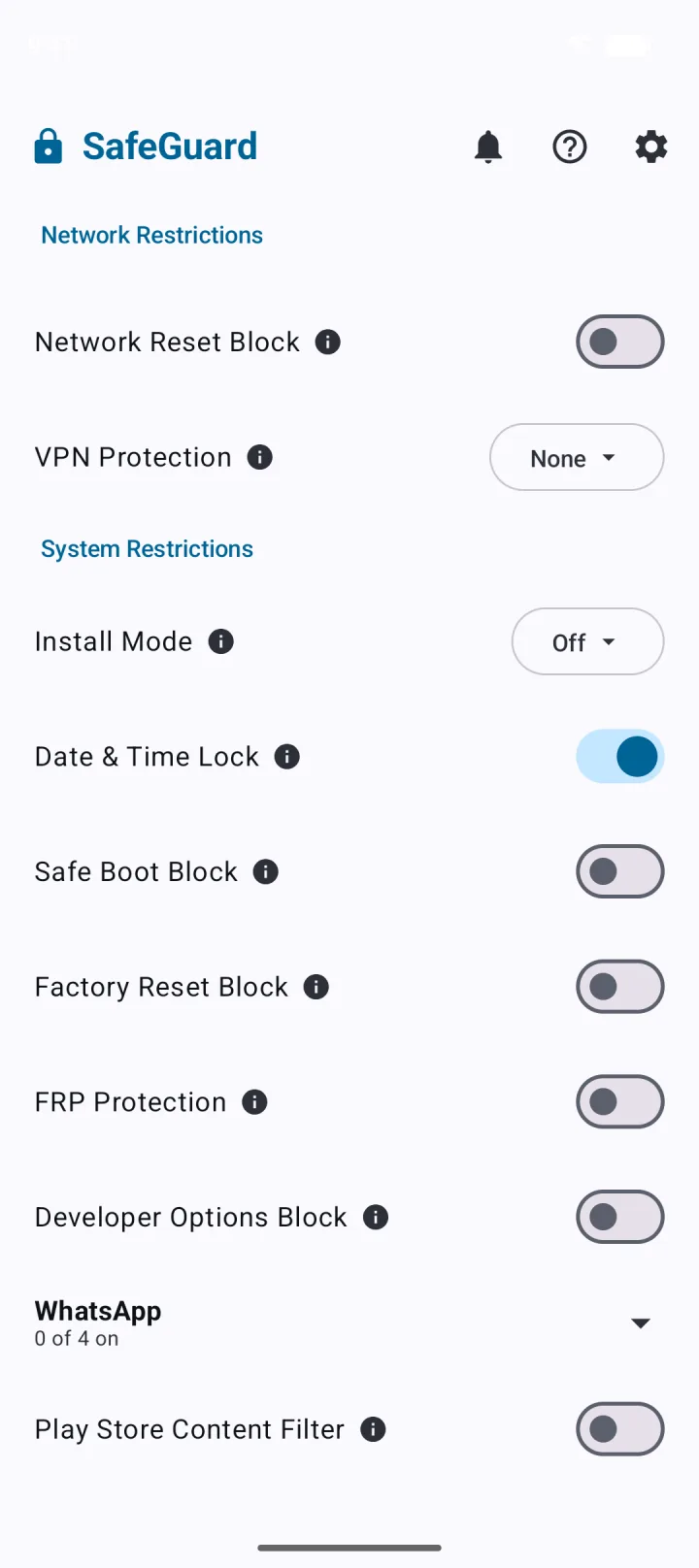
A filtered browser is not worth much if another browser can be installed next to it. So there is a second app, SafeGuard: it hides other browsers, closes browsers that open inside apps, stops new installs and locks the system settings that allow a bypass.
Recommended SafeGuard settingsIllustration only. Tap any route to try it: it stays shut.
Different reasons, same tools.
Parents, people guarding themselves, and people who want fewer images at work or study: the two apps fit all of them.
Want your kids to browse in a clean environment?
For guarding the eyes and a clean environment for the kids. Set one browsing environment for every device at home; with SafeGuard it is hard to get around.
Want to guard yourself?
Choose a partner and add a delay. You decide in advance instead of relying on willpower.
Want fewer images at work or study?
A browser that does not load images and videos by default, a choice of which sites are allowed, and other browsers blocked. Clean browsing without yet another app.
The browser hiding inside your apps
Many apps open links in their own in-app browser, which does not go through your filtered browser. SafeGuard spots it the moment it opens and closes it, only in the apps you choose. Keep email, close the rest.
Guide: in-app browsersHow to get started
What you need: an Android phone, and either Android 11 and up or a computer with a cable. During setup the accounts on the phone are removed temporarily and added back right after.
Download both apps
SafeSurf and SafeGuard, straight from this site.
Set SafeGuard as the device manager
Once only. The guide takes you through it step by step.
Lock the ways around it
VPN connections, Private DNS, new installs and other browsers. Set the delay last.
Browse with SafeSurf
No images or videos by default; bring them back only where needed.
- Open the full guide
What to know before you install
- Filtering runs on the device
- The browser does the filtering itself. Your browsing is not routed through our servers, and there is no VPN.
- Android only
- There is no iPhone version. The apps are downloaded straight from this site.
- The AI filter is still in beta
- It is an extra layer on top of the rules, and it can make mistakes. Our recommendation is to start with no images and no videos.
- One price
- First month free, then $3.49 a month or $29.99 a year per device. SafeGuard is included. Cancellation and refund terms are in the terms of service. Terms of service
- Privacy
- What is collected, and why, is written out in full in the privacy policy. Privacy policy
- Questions and problems
- There is a troubleshooting guide, and you can write to us directly. Report a problem
Start with a free month.
Two apps, one subscription.
One subscription for your account, with SafeGuard included free on the same device. Cancel anytime.
SafeSurf + SafeGuard
SafeSurf + SafeGuard
Everything you need to keep the family's browsing clean, in one subscription.
- Full access to SafeSurf: a browser with a built-in AI filter
- Full access to SafeGuard: the device manager
- Add more devices any time, at the same price per device
- Cancel any time, 14-day money-back
First month free
Refer a friend, and you both get 30 extra days. How it works
Frequently asked questions
Answers to the questions we're asked most often.
SafeSurf is the browser itself: a built-in filtering engine that applies your rules to every request inside the browser, with precise control over content types and sites. SafeGuard is the device manager, and it enforces the environment around the browser: you choose which browsers to block and which apps get their in-app browser blocked, and it blocks new installs and locks sensitive system settings. Together they create an environment that holds up over time.
Yes. Alongside use for guarding yourself, you can turn on managed mode: every request to loosen or change a setting, in both SafeSurf and SafeGuard, requires the partner's approval, and the same partner backs both apps. When a parent is the partner, no block is removed and no setting changes without their approval.
Most filters try to block the entire internet, an endless game of cat and mouse. SafeSurf goes the other way: sites keep working as usual, but images and videos do not load by default, and you decide where to bring them back. The delay and the partner, if you choose one, let you decide in advance instead of relying on willpower.
Changes to your rules or settings, such as removing a block, do not take effect right away. They wait out a delay you set in advance, and by the time it ends the moment has usually passed. Tightening is instant; loosening comes only after a delay. When a change is truly urgent, a partner you chose (a parent, friend or rabbi) can approve it on the spot, from a link you send them any way you like.
SafeSurf and SafeGuard run on Android devices only. There is no iOS version. The setup step runs from a Windows or Mac computer, or directly from the phone on Android 11 and up, with no computer. The apps themselves are installed on the Android device.
For the protection to be hard to get around, SafeGuard is installed as the device manager, the deepest layer in Android. It can be set up this way only through a one-time setup: by cable from a computer (Windows or Mac), or on Android 11 and up straight from the phone, with no computer and no cable, using wireless debugging. During setup the accounts on the phone are removed temporarily, and you add them back afterwards. The installer downloads the tools it needs by itself, so no prior technical knowledge is needed. Once setup is done, everything runs on the device on its own.
Didn't find your answer?
The support bot answers common questions right away. You can ask it for a person, and we will reply in the chat.