Rules: no images, no videos
Last updated:
SafeSurf does not block the internet. Sites keep working, but the content you chose to block does not load. Our recommended setup: no images and no videos everywhere, and on the sites you need, bring back only what is missing.
Where rules live
In the browser, open the menu and choose Protection Dashboard. The Rules Manager tab is where every rule lives. The ? button replays the tour that explains the screen.
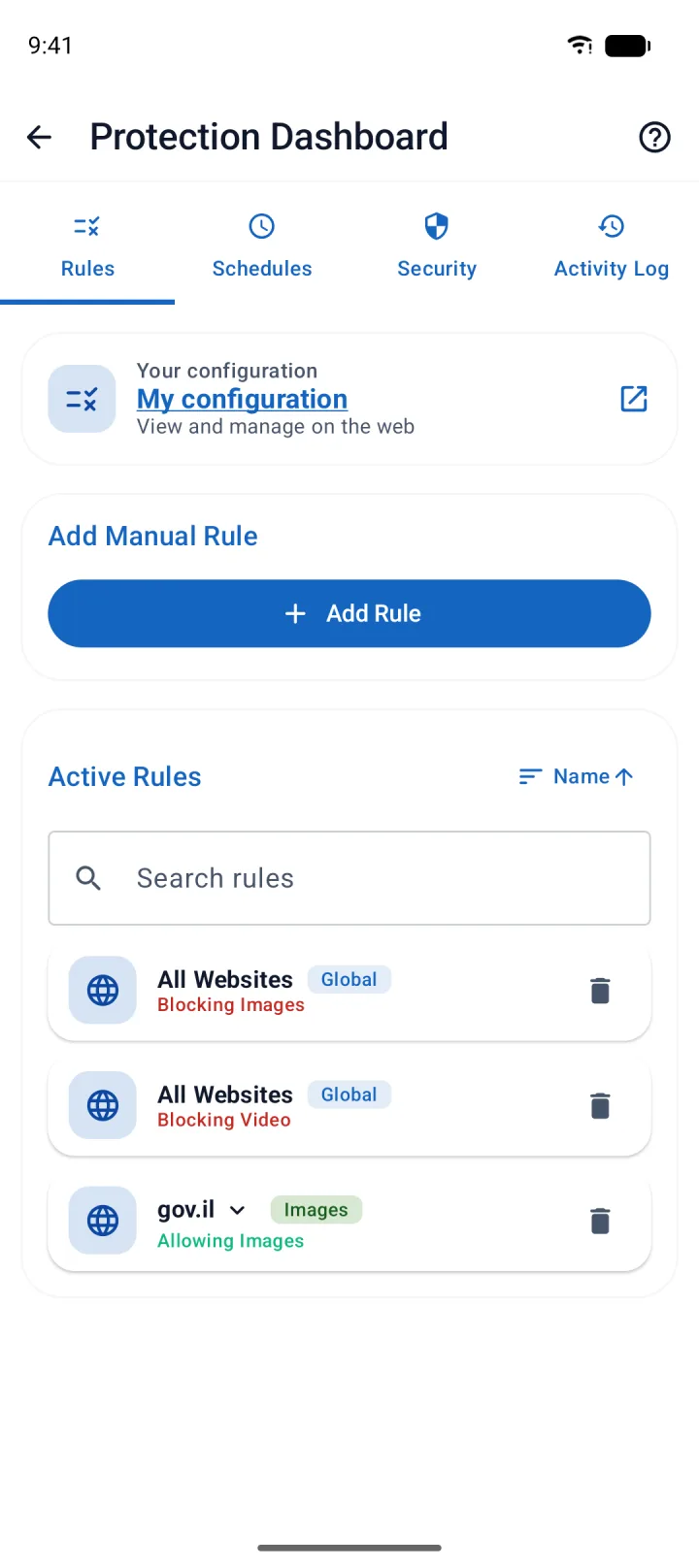
A global rule: no images, no videos
A global rule applies to every site. To create one, leave the domain field empty.
- In Rules Manager, tap Add Rule.
- Leave Domain empty, so the rule is global.
- Choose the category Images and the action Block. You can also pick a Sub-type, such as a single extension, or leave all images.
- Tap Apply Global Rule. Repeat for Video.
A block takes effect immediately, even when a delay is set. Rules apply across the whole browser.
Bring content back on one site
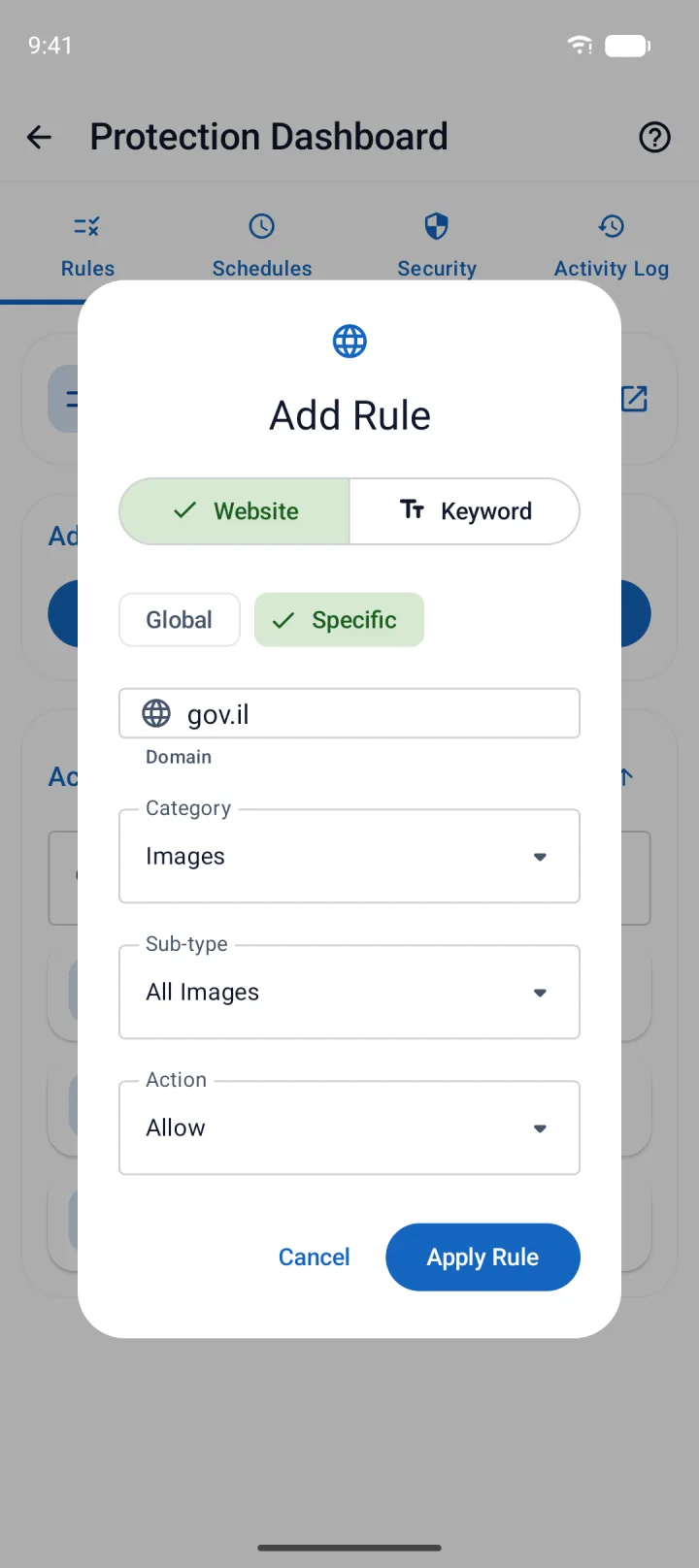
On a site you trust, such as a college, a university or National Insurance, you will want images back. Add a rule for that domain and choose the action Allow.
- Add Rule, and in Domain enter the site, for example
example.com. - Choose the category, for example Images, and the action Allow.
- If you need only part of the site, pick the URL level: Full URL, Path, Host, Domain or TLD. Path lets you allow images only under
example.com/gallery, for instance. - Tap the Apply to button that names the site.
Not only images and videos
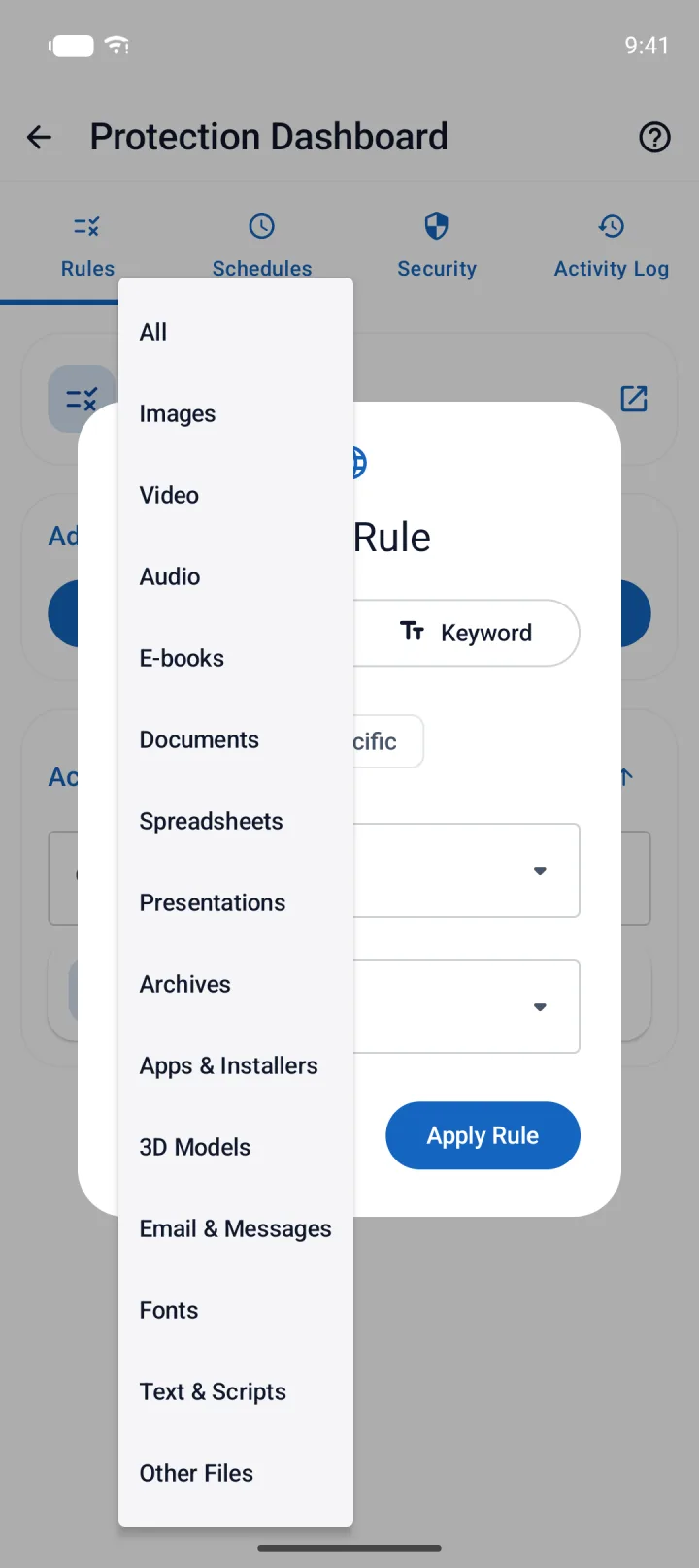
In the Category field you can choose, besides Images and Video, also Audio, E-books, Documents, Spreadsheets, Presentations, Archives, Apps & Installers, 3D Models, Email & Messages, Fonts, Text & Scripts and Other Files. You can block or allow each one, on one site or on all of them. A site rule always wins over the global rule.
In Sub-type you can narrow it down to a single file extension, such as pdf, zip or apk. The list is fixed, and there is no free field for another file type. A file is recognized by the extension in its address or download.
The category All blocks the whole site: in a specific rule for a domain, with the category All and the action Block.
Next
Rules are the building blocks of a configuration, which you can share and import. And if you need images and videos, there is also the AI filter.
Keywords
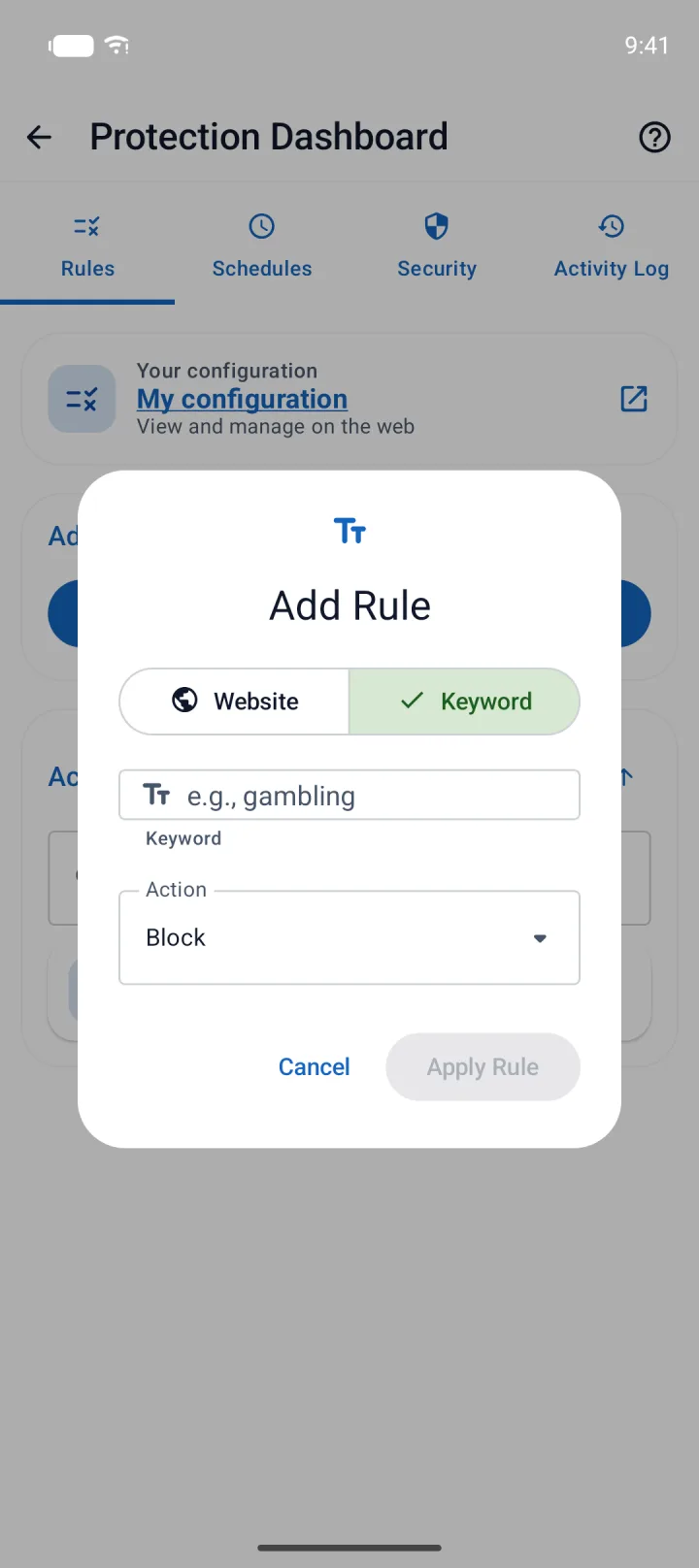
Besides sites, you can block a word. As the rule type choose Keyword and enter the word. SafeSurf checks the page address and the page text, and if the word appears in them as a whole word, the page is blocked. It fits a topic you do not want to see on any site. This kind of block takes effect immediately.
Check what is active
Every rule you created is listed under Active Rules. You can sort them by date, name, type or allow and block, and remove a rule from the list. Removing a block waits for the delay. If you imported a configuration, it is listed separately under Imported configurations, and your rules win over it.
Related
Further reading
Something not working as described? See troubleshooting, or report a problem.
The support bot answers common questions right away. You can ask it for a person, and we will reply in the chat.