Quick start
Last updated:
There are two apps. SafeSurf is the browser that blocks images and videos. SafeGuard closes every other way onto the web, so the browser is the only window. This guide takes you from install to first browse. The recommended settings and the rules are covered in the guides that follow.
Before you start
Quick Setup runs from the phone itself and needs Android 11 or later. On an older version, or if you prefer a computer, follow the full installation guide.
You do this once. After you set a password, a delay or a partner, SafeGuard cannot be removed and the filter cannot be switched off without going through that password, delay or approval.
Download the apps
Download SafeGuard and SafeSurf from the downloads page and install both on the phone.
Seeing a Play Protect message while installing?
That's expected. SafeGuard is installed from a file, not from Google Play, and Play Protect hasn't seen it before, so you may get one message: "App scan recommended". Tap "Scan app", wait for the scan to finish (about 20 seconds), then tap "Install". Or tap "More details" and then "Install without scanning". "Don't install app" cancels the install. In our test the scan ended with "This app looks safe". The message does not appear on every install, and the wording on your phone can differ a little.
Prepare the phone
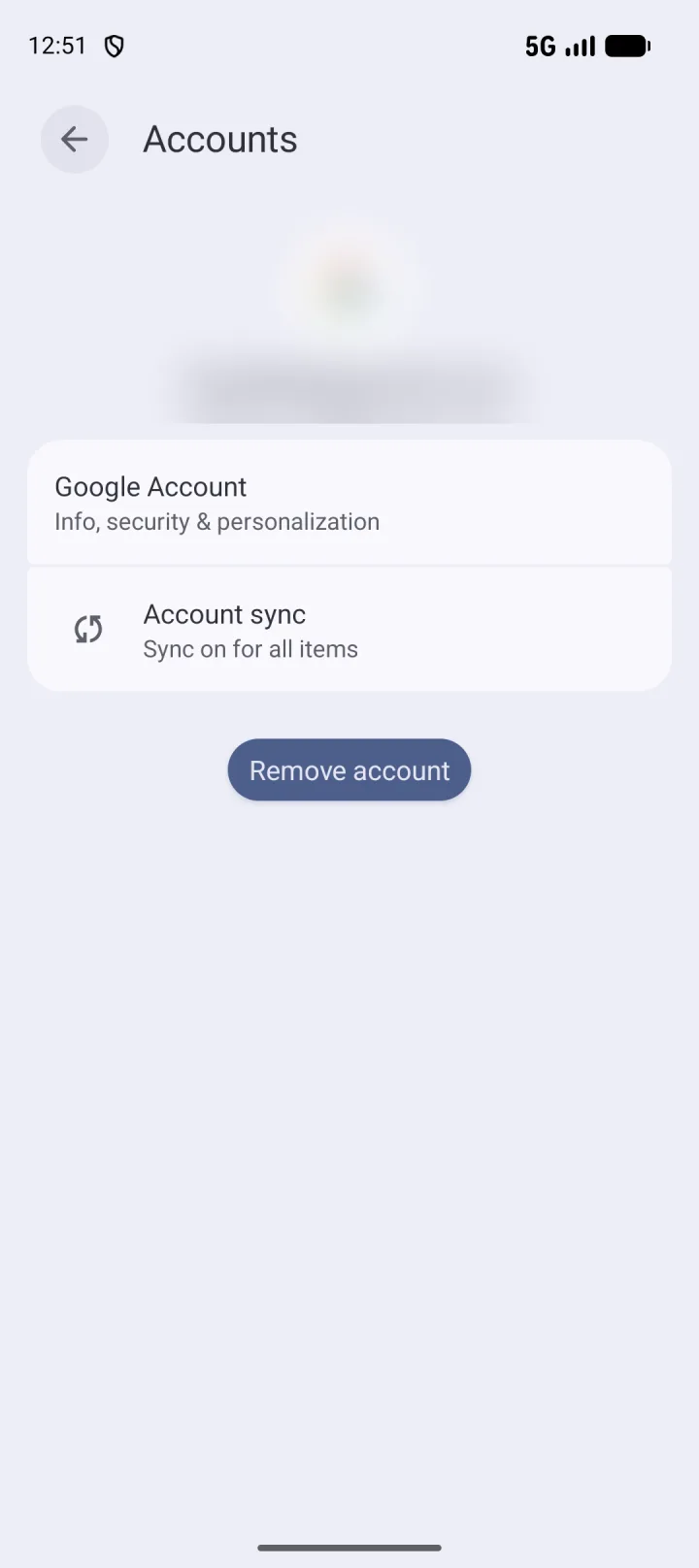
- Temporarily remove the accounts from the phone: Settings → Accounts. You can add them back after setup. Android will not let setup finish while accounts are signed in. The same goes for extra users, Secure Folder and a work profile.
- Turn on developer options: Settings → About phone, then tap Build number seven times. On Samsung it is under Software information.
- Connect to Wi-Fi. Wireless debugging only works on a network.
Lock SafeGuard in place
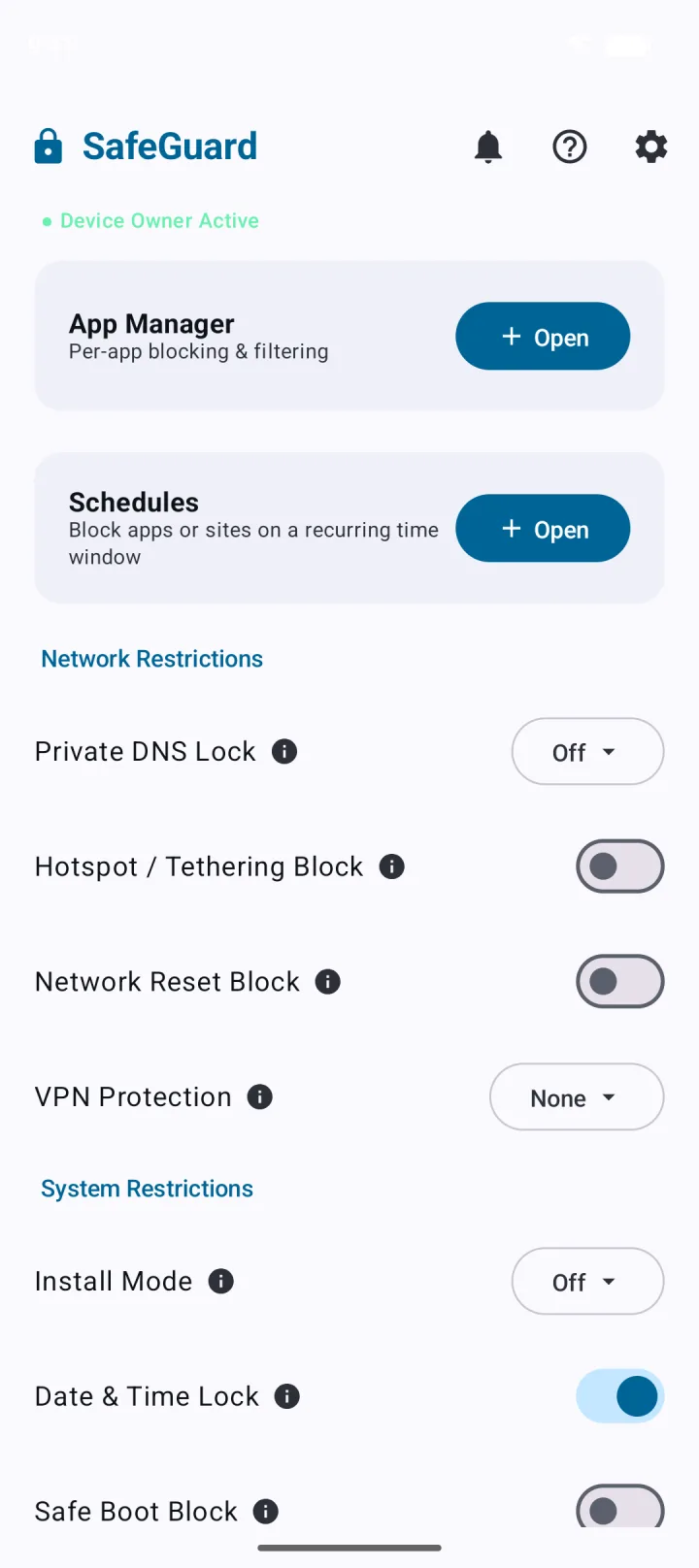
Open SafeGuard. On the Quick Setup card, tap Set up. The app shows what is missing and what to do.
- In developer options, turn on Wireless debugging and allow it on this Wi-Fi network.
- Tap Pair device with pairing code. A six-digit code appears.
- Stay on the pairing window. Pull down your notifications and type the code into the SafeGuard notification. If you leave that window, the code resets and you start this step again.
When setup finishes, SafeGuard shows that it is locked in place. You can now turn Wireless debugging off.
Turn on the accessibility service
The service detects in-app browsers and powers a few other features. Without it, protection is off. If the Activate protection card appears, tap Activate, then enable SafeGuard in the accessibility list.
If the switch is greyed out, open the app info, tap the ⋮ menu and choose Allow restricted settings. After that the switch works.
First launch in SafeSurf
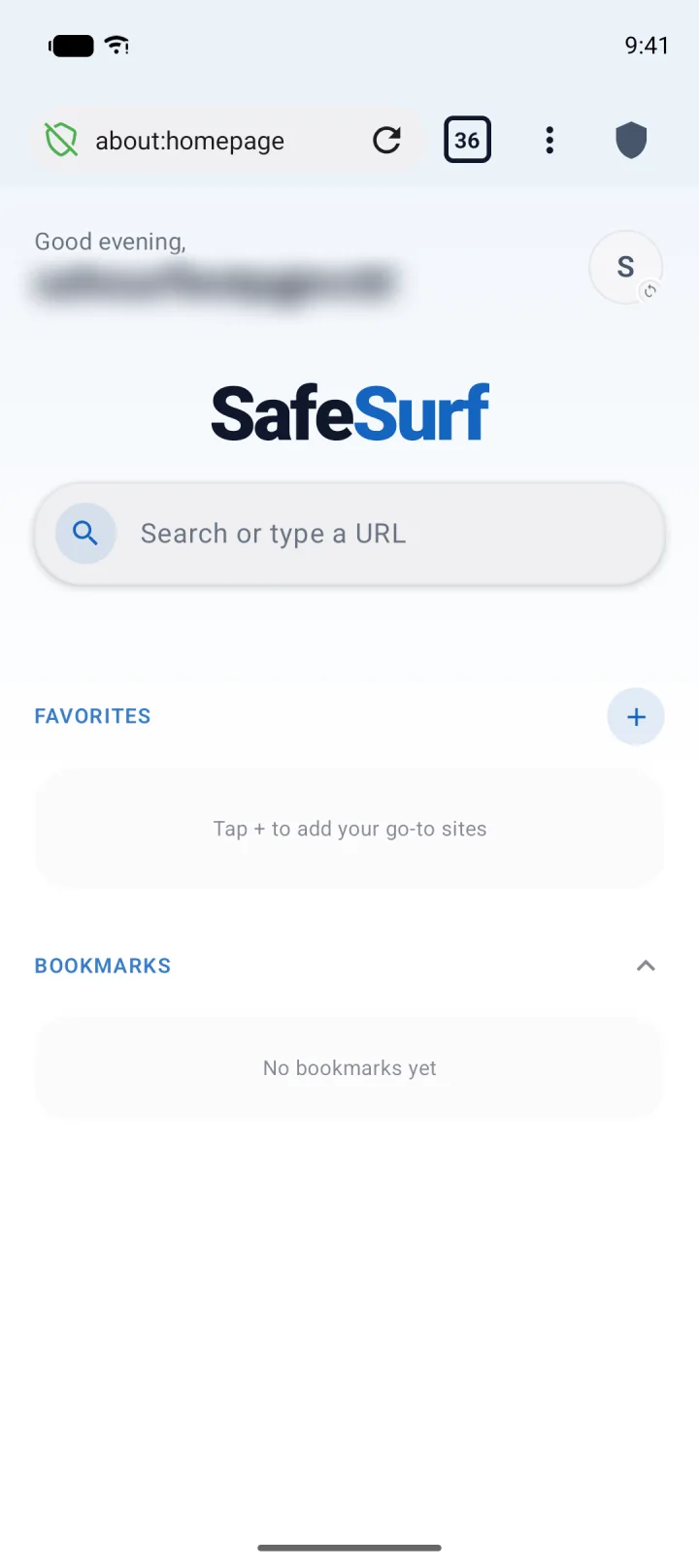
Open SafeSurf and sign in. The built-in guide walks you through the first steps, and you can replay it any time with the ? button.
Our recommendation: start with no images and no videos. Sites keep working as normal, just without the images and videos you blocked. You set that rule, and the sites where images may come back, in the rules guide.
What next
The phone is locked around the browser, but you have not set the locks themselves yet. Continue to the recommended settings in order. Do not set the delay before everything else is done.
Related
Further reading
Something not working as described? See troubleshooting, or report a problem.
The support bot answers common questions right away. You can ask it for a person, and we will reply in the chat.